
File management sounds simple until you are staring at two folders containing hundreds—or even thousands—of files and trying to figure out what changed. That’s where software to compare files in folders becomes invaluable. These specialized tools scan directories and identify differences between files, whether it’s content, timestamps, sizes, or permissions. Instead of manually opening files one by one, comparison software automatically highlights the changes in seconds.
Think of it like a “spot the difference” game—but on steroids. Whether you are a developer comparing source code, a system administrator checking configuration files, or someone verifying backups, these tools streamline the process. Many modern solutions even display files side-by-side and highlight additions, deletions, or edits so you can instantly see what’s different.
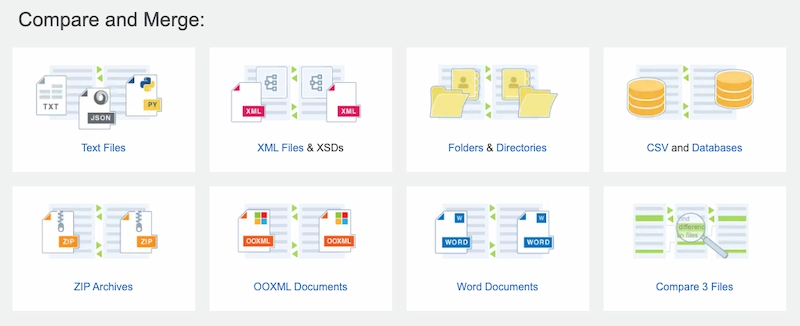
Another powerful advantage is automation. Instead of checking only two files, these programs can compare entire directory trees, including nested folders. Some even allow comparisons across remote servers or cloud storage. According to software documentation, advanced tools like UltraCompare can compare two or three files or folders simultaneously and highlight differences visually, making analysis significantly faster.
Without these tools, managing large file structures becomes tedious and error-prone. Even a small oversight—like a missing configuration file or outdated document—can lead to costly mistakes. Folder comparison software eliminates that risk by making differences instantly visible.
Table of Contents
ToggleWhy Manual File Comparison Is Inefficient
Let’s be honest: manually comparing files is frustrating. Imagine opening two folders and trying to remember which files belong where. Maybe you check modification dates, but that doesn’t always guarantee the contents are identical. A file could have the same name yet contain completely different data.
Manual comparison also becomes nearly impossible when dealing with complex projects. Developers often work with hundreds of source code files, and identifying differences between versions by hand would take hours. Even worse, humans are prone to mistakes when scanning large amounts of information.
Folder comparison tools solve this problem by automating everything. They quickly scan directories and categorize files into groups such as:
-
Identical files
-
Modified files
-
Missing files
-
New files
Instead of guessing, you get a precise breakdown of differences. That level of accuracy is crucial for tasks like software updates, backups, and version control.
Another hidden benefit is time savings. What might take hours manually can often be done in seconds using the right software.
Key Functions of Folder Comparison Tools
Most file comparison software shares a core set of functions that make them incredibly powerful. The first is directory scanning, which analyzes both folders and builds a map of every file and subfolder. This map is then compared to identify mismatches.
Another key function is visual highlighting. Differences between files are usually marked with colors—green for new files, red for missing ones, and yellow for modified content. This visual approach helps users instantly understand what changed.
Many tools also support synchronization. Once differences are identified, you can copy or update files to make both folders identical. This is particularly useful for backups or mirrored directories.
Advanced features include:
-
Comparing compressed archives without extracting them
-
Ignoring whitespace or formatting changes in text files
-
Generating detailed comparison reports
Some enterprise-level tools even integrate with version control systems like Git. This allows teams to track code changes across multiple contributors while resolving conflicts quickly.
Top Software to Compare Files in Folders
WinMerge
WinMerge is one of the most widely used open-source tools for comparing files and folders. It’s designed primarily for Windows users and offers a clean visual interface that makes differences easy to spot.
The software displays files side-by-side and highlights modifications in text documents or code. It also supports three-way file comparison, making it useful when merging changes from multiple sources.
One standout feature is its ability to compare entire folder trees, including subfolders. Instead of analyzing files individually, WinMerge scans the entire directory structure and presents results in a tree-style view. This makes it easier to navigate large projects.
WinMerge also supports plugins and integration with version control systems, allowing developers to use it as part of their coding workflow. Because it’s open source, it remains a popular choice among programmers and IT professionals who want a free but powerful solution.
UltraCompare
UltraCompare is a professional-grade file comparison tool designed for Windows, Mac, and Linux users. It supports two-way and three-way comparisons, allowing users to analyze differences between multiple files or directories simultaneously.
What makes UltraCompare stand out is its versatility. It can compare not only plain text files but also documents like Word, Excel, and PDF files. The software also supports comparing compressed archives and even remote files stored on FTP servers.
Another major advantage is its folder synchronization capability. Once differences are detected, the software can automatically merge or update files to keep directories consistent. This is especially useful for developers managing project repositories or teams maintaining shared documents.
UltraCompare also handles very large files that many other tools struggle with. For organizations dealing with massive datasets or logs, this feature alone can be a huge time saver.
DirEqual
DirEqual is a straightforward directory comparison tool designed specifically for Windows. It focuses on simplicity while still offering powerful features for analyzing folder differences.
The software compares directories based on file contents, timestamps, and permissions, giving users a comprehensive view of changes. This flexibility makes it useful for backup verification and system monitoring.
DirEqual also provides different comparison modes, including quick comparisons based on metadata and deep comparisons that analyze files byte-by-byte. The results are displayed in a color-coded interface that makes differences easy to understand.
Another helpful feature is its ability to generate detailed reports of changes. These reports can be used to document updates or verify that backups were completed successfully.
Guiffy Folder Compare
Guiffy is another powerful tool that supports cross-platform folder comparison across Windows, macOS, Linux, and Unix systems.
One of Guiffy’s strengths is its Explorer-like interface, which allows users to navigate folders easily while reviewing differences. The software also supports recursive comparisons, meaning it can analyze entire directory trees automatically.
Guiffy includes automation features such as command-line integration and API access. These capabilities allow developers and system administrators to integrate folder comparisons into automated workflows or scripts.
Because of its flexibility and cross-platform compatibility, Guiffy is widely used in enterprise environments where teams work across different operating systems.
Core Features to Look for in Folder Comparison Software
Visual Difference Detection
One of the most valuable features of comparison software is the ability to display differences visually. Instead of scanning through long lists of filenames, users can immediately see changes highlighted within the file itself.
For example, if two code files differ by only a few lines, the software highlights those exact lines. This makes troubleshooting far easier, especially for developers working on complex applications.
Visual comparison also reduces cognitive load. Rather than interpreting raw data, the user simply follows highlighted markers showing where changes occurred.
Folder Synchronization
Many tools don’t just compare files—they also synchronize them. After identifying differences, the software can copy missing files, update modified ones, or delete outdated versions.
This feature is particularly useful for:
-
Backup management
-
Cloud storage synchronization
-
Project collaboration
Instead of manually updating folders, synchronization tools ensure that both directories remain consistent.
File Content Comparison
Sometimes two files may have the same name but completely different contents. File comparison software solves this problem by analyzing data inside the file.
Some tools perform byte-by-byte comparisons, ensuring that files are identical at the binary level. Others analyze text content and ignore formatting differences such as whitespace.
This capability is critical for developers and system administrators who need to verify file integrity.
Comparing Popular Tools
Feature Comparison Table
| Software | Platform | Key Features | Best For |
|---|---|---|---|
| WinMerge | Windows | Open-source, visual diff, folder comparison | Developers |
| UltraCompare | Windows, Mac, Linux | 3-way compare, FTP support, document comparison | Professionals |
| DirEqual | Windows | Content, timestamp, and permission comparison | Backup analysis |
| Guiffy | Cross-platform | Recursive folder compare, automation API | Enterprise use |
Choosing the Right Tool for Your Workflow
Selecting the right software depends largely on your needs. Developers often prefer tools like WinMerge or UltraCompare because they integrate well with coding environments. On the other hand, IT administrators might choose DirEqual for its straightforward approach to folder comparison.
If cross-platform compatibility is important, Guiffy or UltraCompare may be better options. These tools allow teams using different operating systems to collaborate without compatibility issues.
Budget is another factor. Open-source tools like WinMerge are free, while professional solutions often require a license but offer more advanced features.
How Folder Comparison Software Works
File Metadata Comparison
Most tools start by comparing file metadata such as size, modification date, and name. This quick analysis helps identify obvious differences between files without reading their entire contents.
Metadata comparison is extremely fast, making it useful when scanning large directories. However, it isn’t always reliable because two files can have identical sizes yet contain different data.
Byte-by-Byte File Analysis
For deeper analysis, comparison software performs byte-by-byte checks. This method examines every piece of data in the file to confirm whether it is truly identical.
Although slower than metadata comparison, byte-level analysis ensures complete accuracy. Many tools allow users to choose between quick comparisons and full content comparisons depending on their needs.
Real-World Use Cases for File Comparison Tools
Software Development
Developers constantly compare files to track code changes between versions. Comparison tools highlight modifications line-by-line, making debugging and collaboration much easier.
These tools also help resolve conflicts when multiple developers modify the same file.
Backup Verification
Imagine copying thousands of files to a backup drive. How do you know everything transferred correctly?
Folder comparison tools analyze both directories and confirm that files match exactly. If something is missing or corrupted, the software flags it immediately.
Document Version Tracking
Writers, editors, and researchers frequently work with multiple versions of documents. Comparison software helps identify edits, additions, and deletions between versions.
This feature is especially useful when collaborating with teams or reviewing document revisions.
Tips to Use Folder Comparison Software Efficiently
Using comparison tools effectively requires a few best practices. First, organize your files before running comparisons. A well-structured directory makes analysis faster and easier.
Second, choose the right comparison mode. For quick checks, metadata comparison is sufficient. For critical files, use full content comparison.
Third, generate reports when possible. Reports provide a record of changes and can be helpful when auditing systems or verifying backups.
Finally, schedule regular comparisons if you manage large datasets. Automated checks ensure that differences are detected early before they cause bigger issues.
Conclusion
Software to compare files in folders has become an essential tool for developers, IT administrators, and everyday computer users. These tools automate the process of identifying differences between files and directories, saving countless hours of manual work.
From open-source solutions like WinMerge to professional tools like UltraCompare and Guiffy, there are options available for every workflow and budget. The key is choosing a tool that offers the features you need—whether that’s visual comparison, folder synchronization, or deep file analysis.
As digital projects grow larger and more complex, the importance of reliable file comparison software will only increase. Instead of manually searching for differences, these tools provide clarity and accuracy in seconds.
FAQs
1. What is the best software to compare files in folders?
Popular options include WinMerge, UltraCompare, DirEqual, and Guiffy. Each offers different features depending on your operating system and workflow.
2. Can file comparison software detect duplicate files?
Yes. Many tools include duplicate detection features that identify identical files based on content or hash values.
3. Is there free software for comparing folders?
Yes. WinMerge is a well-known open-source tool that allows users to compare files and folders without paying for a license.
4. Can these tools compare files on different computers?
Some advanced tools can compare files over networks or FTP servers, allowing comparisons between remote systems.
5. Do file comparison tools work with binary files?
Yes. Many tools support binary comparison, enabling users to detect differences at the byte level.

Sam Finley
You Can grow your website seo .And ranking website feel free contact : Ethinemily@gmail.com
Leave a Reply
You must be logged in to post a comment.