



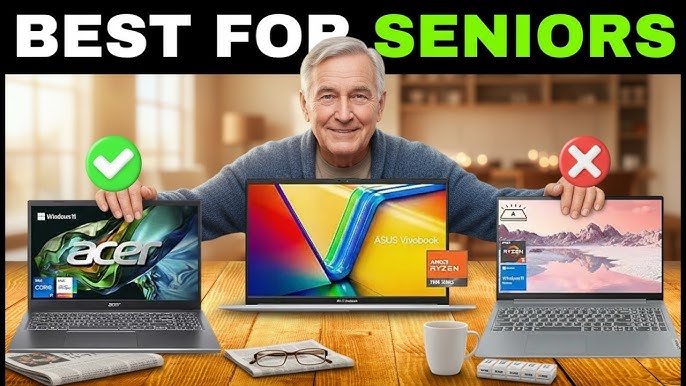
Picking the right computer for seniors isn’t just about buying a device—it’s about unlocking independence, connection, and confidence. Imagine trying to use a complicated machine filled with tiny icons, confusing menus, and constant notifications. That’s exactly how many seniors feel when they first interact with modern technology. The wrong computer can turn simple tasks like checking email or video calling family into frustrating experiences.
On the flip side, the right computer can feel like a friendly companion. It becomes a tool for staying connected with loved ones, managing finances, watching videos, or even exploring hobbies online. In fact, technology adoption among seniors is growing rapidly. According to recent research, about 43% of adults aged 65+ now own a tablet, showing a clear shift toward digital engagement . This means more seniors are willing to embrace technology—but only if it’s easy enough to use.
The key here is simplicity. Seniors don’t need high-end gaming specs or complex software. They need something that works smoothly, feels intuitive, and doesn’t overwhelm them. Think of it like choosing a car: you wouldn’t give a beginner a race car—you’d give them something reliable, easy to control, and safe. The same logic applies here.
Table of Contents
ToggleCommon Challenges Seniors Face with Technology
Let’s be real—technology isn’t always senior-friendly. Many devices are designed with younger users in mind, leaving older adults struggling with unnecessary complexity. One of the biggest challenges is vision. As people age, reading small text becomes harder, which makes tiny screens and cluttered interfaces frustrating to use. That’s why larger displays consistently rank as the most important feature for seniors .
Another issue is motor skills. Conditions like arthritis affect nearly 1 in 3 seniors over 65, making it difficult to use trackpads or small keyboards . Clicking tiny icons or dragging a cursor can feel like threading a needle. This is where touchscreens and simplified controls come into play—they remove unnecessary barriers.
Then there’s the learning curve. Many seniors didn’t grow up with computers, so concepts like apps, updates, or cloud storage can feel foreign. Complex operating systems with endless features only add to the confusion. That’s why simplicity isn’t just a bonus—it’s essential.
Key Features That Make a Computer Easy to Use
Large and Clear Display
A bigger screen can make a world of difference. Experts recommend at least a 15-inch display with Full HD resolution for better readability . Larger screens reduce eye strain and make text easier to read without constant zooming. It’s like switching from reading fine print to reading a newspaper—everything just feels more comfortable.
Simple Operating System
Not all systems are created equal. Some are cluttered with features you’ll never use, while others are clean and straightforward. Systems like ChromeOS and macOS are often praised for their simplicity and minimal setup . The fewer steps it takes to open email or browse the internet, the better.
Comfortable Keyboard and Input Options
Typing should feel natural, not like a workout. Large, well-spaced keys are crucial, especially for seniors with arthritis. Many experts also recommend using a wireless mouse instead of a trackpad—it’s easier to control and reduces frustration .
Touchscreen and Voice Assistance
Touchscreens are a game-changer. Instead of navigating with a cursor, users can simply tap what they want. It’s intuitive—like using a smartphone. Voice assistants add another layer of convenience, allowing users to perform tasks hands-free.
Types of Computers Suitable for Seniors
Tablets
Tablets are often considered the easiest option for beginners. Their touch-based interface eliminates the need for a mouse or keyboard. Devices like tablets are especially popular because they’re simple, portable, and require minimal setup. For seniors who just want to browse the web, watch videos, or video call family, tablets are a fantastic choice.
Laptops
Laptops offer more functionality while still being relatively easy to use. They’re ideal for seniors who want a balance between simplicity and productivity. Modern laptops designed for seniors focus on larger screens, comfortable keyboards, and straightforward interfaces.
Desktop Computers
Desktops are less portable but offer bigger screens and full-sized keyboards. They’re great for seniors who prefer a fixed setup and don’t need to move their device around. The larger display can significantly improve comfort.
All-in-One PCs
All-in-one computers combine the monitor and CPU into a single unit, reducing clutter and setup complexity. It’s essentially a “plug-and-play” solution, making it perfect for seniors who want minimal hassle.
Best Operating Systems for Seniors
macOS
macOS is known for its clean interface and reliability. It’s less prone to viruses and requires less maintenance, making it a great choice for seniors who want a “set it and forget it” experience.
Windows
Windows is the most widely used operating system, which means more familiarity for many users. While it can be complex, modern versions offer accessibility features that make it easier to navigate.
ChromeOS
ChromeOS is arguably the simplest of all. It’s fast, secure, and designed primarily for web-based tasks. Chromebooks boot quickly and require minimal maintenance, making them ideal for beginners .
Top Recommended Devices for Seniors in 2026
Chromebooks
Chromebooks are often the easiest computers for seniors. They’re affordable, simple, and perfect for basic tasks like email and browsing. They also have fewer pop-ups and automatic updates, reducing maintenance hassles .
MacBook Air
The MacBook Air stands out for its reliability and ease of use. It offers a smooth experience, excellent battery life, and strong customer support, making it a top choice for seniors who want something dependable .
Windows Touchscreen Laptops
Touchscreen laptops combine the familiarity of Windows with the simplicity of touch controls. They’re great for seniors who prefer direct interaction rather than using a mouse.
Comparison Table of Best Options
| Device Type | Ease of Use | Best For | Price Range | Key Advantage |
|---|---|---|---|---|
| Chromebook | ⭐⭐⭐⭐⭐ | Beginners | Low | Simple and secure |
| MacBook Air | ⭐⭐⭐⭐ | Everyday users | High | Reliable and smooth |
| Windows Laptop | ⭐⭐⭐ | Familiar users | Medium | Flexibility |
| Tablet | ⭐⭐⭐⭐⭐ | Absolute beginners | Low–Medium | Touch simplicity |
How to Choose the Right Computer Based on Needs
For Beginners
If someone has never used a computer before, simplicity should be the top priority. Tablets or Chromebooks are ideal because they eliminate unnecessary complexity. Think of them as the “training wheels” of technology—they make learning easy and stress-free.
For Intermediate Users
For seniors who already have some experience, a laptop like a MacBook or Windows device can be a better choice. These devices offer more features without being overwhelming.
Accessibility Features That Help Seniors
Modern computers come packed with accessibility features designed to make life easier. These include:
- Larger text and icons
- Screen readers
- Voice commands
- High-contrast modes
These features ensure that seniors can use their devices comfortably, regardless of physical limitations.
Tips to Make Any Computer Easier to Use
Even the best computer can feel difficult without proper setup. Here are a few tips:
- Increase text size and zoom levels
- Remove unnecessary apps
- Use a wireless mouse
- Set up bookmarks for frequently used websites
Small adjustments can make a huge difference.
Budget Considerations
You don’t need to spend a fortune to get a good computer for seniors. Many excellent options are available between $150 and $350, especially Chromebooks . The goal is to focus on usability rather than high-end specs.
Common Mistakes to Avoid
One of the biggest mistakes is overbuying. Fancy features might look appealing, but they often add unnecessary complexity. Another mistake is ignoring screen size—small screens can quickly become frustrating. Always prioritize comfort and simplicity over performance.
Conclusion
The easiest computer for seniors isn’t a one-size-fits-all answer—it depends on the user’s needs, experience, and comfort level. For absolute beginners, tablets and Chromebooks offer unmatched simplicity. For those who want more functionality, laptops like the MacBook Air or touchscreen Windows devices provide a great balance.
At the end of the day, the best computer is the one that feels natural to use. If it’s easy to turn on, simple to navigate, and doesn’t cause frustration, then you’ve found the right match.
FAQs
1. What is the easiest computer for seniors with no experience?
A tablet or Chromebook is usually the easiest option because of its simple interface and minimal setup.
2. Are laptops or tablets better for seniors?
Tablets are easier for beginners, while laptops are better for those who need more functionality.
3. What screen size is best for seniors?
A 15-inch or larger screen is ideal for better readability and reduced eye strain.
4. Do seniors need expensive computers?
No, affordable options like Chromebooks provide excellent usability without high costs.
5. How can I make a computer easier for an elderly person?
Adjust settings like text size, remove unnecessary apps, and use simple navigation tools like a mouse or touchscreen.

Sam Finley
You Can grow your website seo .And ranking website feel free contact : Ethinemily@gmail.com
Leave a Reply
You must be logged in to post a comment.